
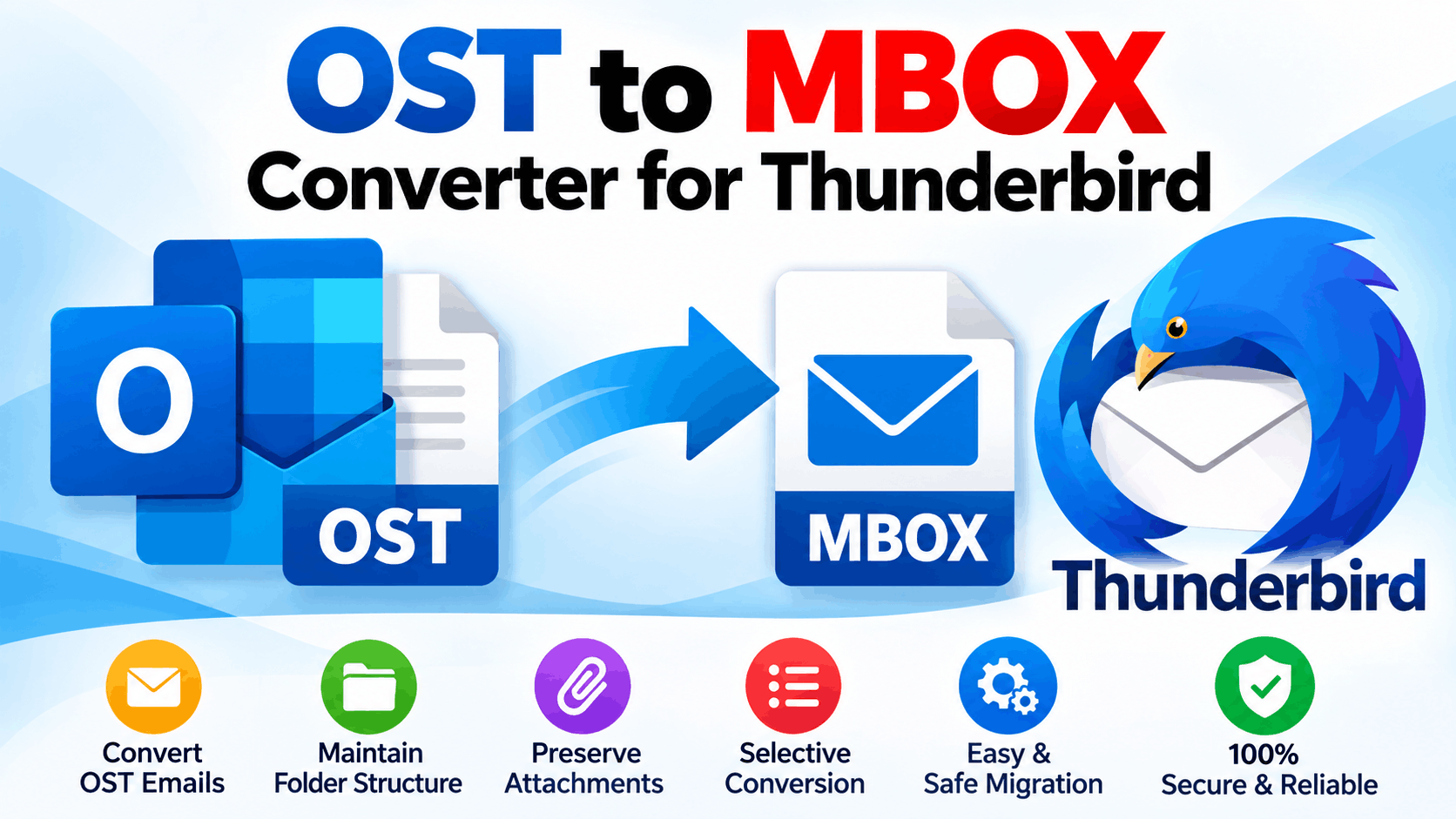
Moving emails from Outlook to Thunderbird can seem complicated when your data is stored in an OST file. Thunderbird primarily works with the MBOX format, while Outlook uses OST files for offline mailbox data. This difference makes direct migration difficult without the right conversion approach.
An OST to MBOX Converter for Thunderbird is designed to bridge this gap by converting Outlook OST mailbox data into MBOX files that can be imported into Thunderbird.
Whether you are switching email platforms, recovering emails from an old Outlook profile, or migrating mailbox data to Thunderbird, understanding the conversion process can help you avoid common data-loss and compatibility problems.
What Is an OST File?
An OST (Offline Storage Table) file is an Outlook data file used to store a local synchronized copy of mailbox information. It can contain emails, attachments, contacts, calendars, tasks, and other mailbox items.
OST files are commonly associated with Microsoft Exchange, Microsoft 365, and IMAP accounts configured in Outlook.
Think of an OST file as an offline copy of your mailbox. Outlook uses it to let you access synchronized data even when you are temporarily disconnected from the mail server.
However, OST files are not directly supported by Thunderbird.
What Is an MBOX File?
MBOX is a mailbox storage format used by several email applications, including Mozilla Thunderbird.
Unlike an OST file, an MBOX mailbox stores email messages in a format that Thunderbird can work with. Therefore, when users want to move email data from Outlook to Thunderbird, converting OST data into MBOX can be an important step.
In simple terms:
Outlook → OST
Thunderbird → MBOX
An OST to MBOX conversion tool helps transform the data from one format into the other.
Why Convert OST to MBOX for Thunderbird?
There are several reasons users may need to migrate Outlook data to Thunderbird.
Some users move from Outlook to Thunderbird because they prefer Thunderbird's interface, open-source ecosystem, or cross-platform support.
When moving between email clients, existing mailbox data may need to be converted before it can be imported.
An old OST file may contain important business correspondence, attachments, or personal emails. If the original Outlook profile is no longer available, users may need a specialized conversion solution to extract accessible mailbox data.
Organizations and individuals sometimes migrate email archives between different platforms. Converting OST files into MBOX makes the resulting mailbox data more suitable for Thunderbird-based workflows.
A properly designed converter can preserve email content and associated attachments during migration, depending on the condition and structure of the source OST file.
How Does an OST to MBOX Converter for Thunderbird Work?
The conversion process can be understood in a few simple stages.
Step 1: Select the OST File
First, the user selects the OST file that needs to be converted. Depending on the software, multiple OST files may be supported.
Step 2: Analyze the Mailbox
The converter scans the OST file and identifies available mailbox folders and email items.
These may include:
The exact supported items depend on the software.
Step 3: Preview the Data
A preview feature can help users inspect mailbox content before starting the conversion.
This is particularly useful when working with large OST files because users can verify that the expected folders and messages are accessible.
Step 4: Select MBOX as the Output
The user chooses MBOX as the destination format.
Some tools may also provide options for selecting specific folders rather than converting the entire mailbox.
Step 5: Convert OST to MBOX
The software processes the selected mailbox data and creates MBOX output files.
The resulting files can then be prepared for import into Thunderbird.
Step 6: Import MBOX into Thunderbird
After conversion, the MBOX files can be imported into Thunderbird using a compatible import method or extension.
The exact import process can vary depending on the Thunderbird version and operating system.
Key Features to Look for in OST to MBOX Converter Software
Not every converter provides the same functionality. If you are evaluating an OST to MBOX Converter for Thunderbird, consider the following features.
Selective Conversion
Selective conversion lets users choose specific folders instead of processing an entire mailbox.
This can save time when only a particular folder is required.
Batch Conversion
For users managing multiple OST files, batch conversion can reduce repetitive manual work.
Instead of converting files individually, supported software can process multiple files in a single workflow.
Attachment Preservation
Attachments are often an important part of business emails. A conversion solution should maintain accessible attachments whenever the source data allows it.
Email Folder Structure
Maintaining the original mailbox organization can make migration easier.
A converter that preserves folders such as Inbox, Sent Items, Drafts, and custom folders can reduce the amount of manual organization required afterward.
Preview Function
A preview option provides an opportunity to inspect source data before conversion.
This can be especially useful when dealing with old or large OST files.
Compatibility
Before purchasing or installing software, check its compatibility with your version of Windows, Outlook data, and Thunderbird.
OST to MBOX Conversion Without Outlook
One frequently searched requirement is converting OST to MBOX without Outlook.
This can be important when the original Outlook installation or mailbox profile is unavailable.
A specialized OST conversion application may be able to read the OST file directly and extract its accessible mailbox data without requiring the original Outlook profile.
However, users should understand that OST files can have different origins and conditions. Some may be synchronized with an active server account, while others may be orphaned or inaccessible. Conversion results can therefore depend on the source file.
Free vs. Professional OST to MBOX Converter
Free tools may be suitable for small or straightforward conversion tasks. However, they can sometimes have limitations involving file size, the number of emails processed, export options, or supported mailbox items.
Professional software may provide additional features such as:
Before choosing software, compare its supported features with your actual migration requirements.
Common Problems During OST to MBOX Conversion
Several issues can affect the migration process.
Large OST Files
Large mailboxes can require considerable processing time and storage space. Make sure the destination drive has sufficient free space.
Corrupted OST Data
If the source OST file is damaged, some mailbox items may not be readable. The condition of the source file can directly affect conversion results.
Unsupported Items
Not every Outlook item necessarily maps perfectly to the MBOX format. MBOX primarily represents email messages, so certain Outlook-specific data may require a different migration approach.
Thunderbird Import Issues
Even after successful conversion, MBOX files must be imported correctly into Thunderbird. Folder structure and Thunderbird's profile configuration can affect how imported data appears.
Best Practices for OST to MBOX Migration
Before starting the migration, follow these practical recommendations:
These steps reduce the risk of accidental data loss during migration.
Final Thoughts
An OST to MBOX Converter for Thunderbird provides a practical way to move Outlook mailbox data into a format that Thunderbird can use. The process involves extracting accessible data from the OST file, converting it into MBOX, and then importing the resulting mailbox into Thunderbird.
For simple migrations, a basic converter may be sufficient. For larger or more complicated mailboxes, features such as batch processing, selective conversion, attachment preservation, mailbox preview, and support for large OST files can make the process more manageable.
The most important consideration is to protect the original OST file and verify the converted data before deleting or replacing anything. A careful migration process helps preserve valuable email information while making the transition from Outlook to Thunderbird much smoother.
*try to Free Download enables you to preview & converted file and save 30 items per folder.




0 Comments