
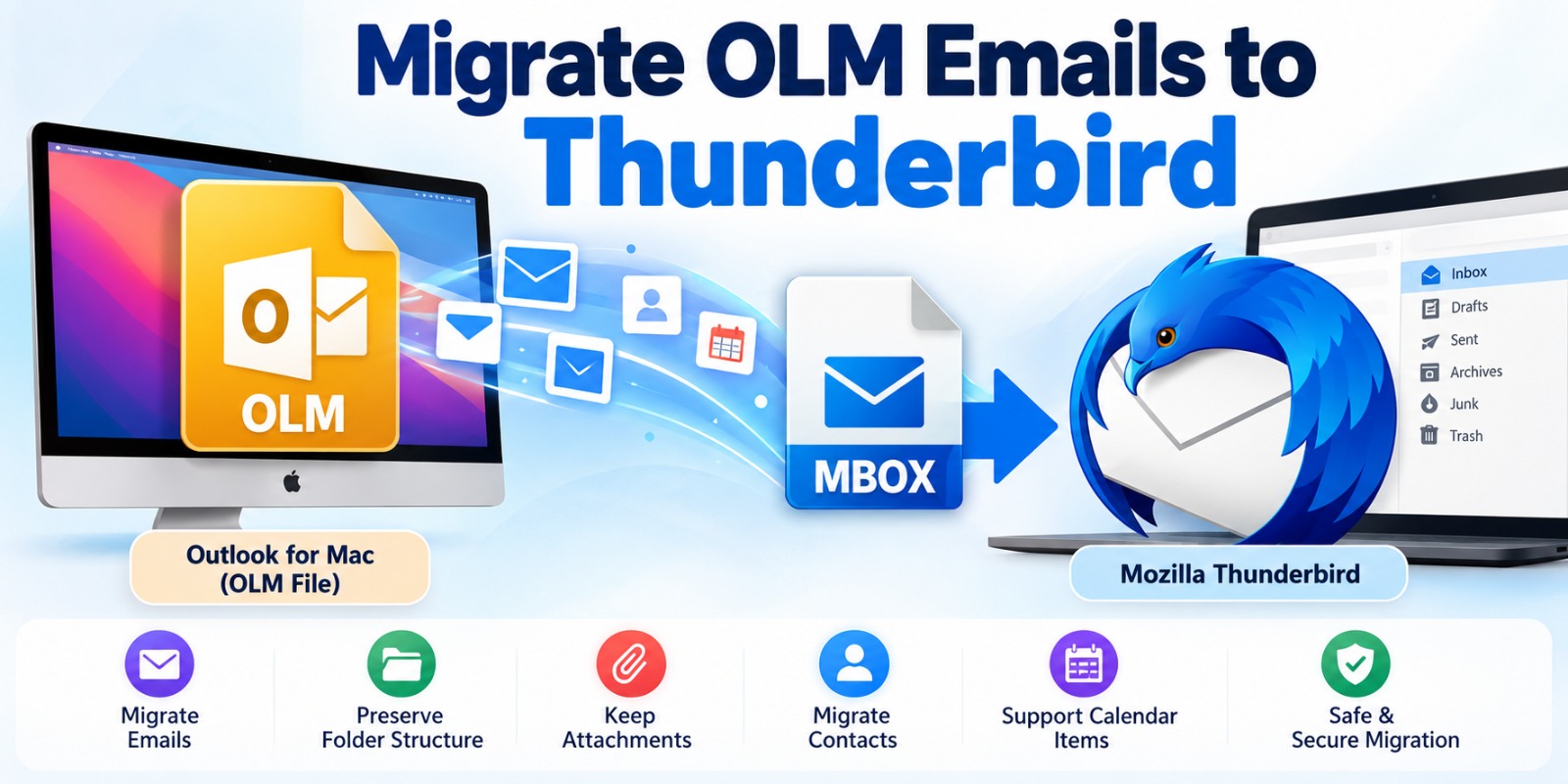
Moving email data from Microsoft Outlook for Mac to Mozilla Thunderbird can be challenging because Outlook for Mac stores mailbox data in OLM files, while Thunderbird primarily works with MBOX-based mailbox formats. If you have an OLM backup containing important emails, contacts, or other mailbox data, you need a suitable migration method before Thunderbird can access the messages.
This guide explains how to migrate OLM emails to Thunderbird, what makes the process difficult, and which approaches can help preserve your email data during migration.
What Is an OLM File?
An OLM file is an Outlook for Mac data file used to export or archive mailbox information. It can contain emails, folders, contacts, calendars, and other Outlook data.
Thunderbird, however, does not natively import OLM files. Thunderbird commonly uses the MBOX format to store email messages. Therefore, migrating OLM emails to Thunderbird generally requires converting the OLM mailbox data into a Thunderbird-compatible format.
In simple terms:
Outlook for Mac → OLM → MBOX → Thunderbird
The conversion step is the key part of the migration process.
Why Migrate OLM Emails to Thunderbird?
There are several reasons users may want to move OLM data into Thunderbird:
The migration can be particularly useful when an organization or individual wants to preserve historical emails while changing email clients.
Can Thunderbird Open OLM Files Directly?
No. Thunderbird does not provide native support for directly opening an Outlook for Mac OLM file.
This is an important distinction. Simply copying an .olm file into a Thunderbird profile does not normally make its messages available because OLM and MBOX are different mailbox structures.
Therefore, you generally need to convert or extract the OLM data into MBOX-compatible mailbox files before importing the messages into Thunderbird.
Method 1: Convert OLM to MBOX and Import into Thunderbird
The most straightforward migration workflow is to use an OLM to MBOX converter.
Step 1: Locate the OLM File
First, locate the OLM file exported from Outlook for Mac.
You may have created this file using Outlook's export functionality, or it may already exist as an email archive or backup.
Before starting the conversion, make a backup copy of the original OLM file. This gives you a preserved source if something goes wrong during migration.
Step 2: Select an OLM to MBOX Converter
Because Thunderbird uses MBOX-compatible mailbox storage, an OLM-to-MBOX conversion tool can bridge the format difference.
Look for software that supports:
For large or business-critical archives, folder structure and attachment preservation are particularly important.
Step 3: Add the OLM File
Launch the converter and select the source OLM file.
Depending on the application, the software may scan the OLM file and display its mailbox folders. You may see folders such as:
Review the folder list before starting the conversion.
Step 4: Select MBOX as the Output Format
Choose MBOX as the destination format.
If the software provides selective conversion, you can choose only the folders you need instead of converting the entire OLM archive.
For example, if you only need historical messages from the Inbox and Sent Items, you can select those folders rather than processing the entire mailbox.
Step 5: Convert the OLM Data
Start the conversion process.
The software extracts email messages from the OLM file and creates MBOX-compatible output. Depending on the size of the mailbox, this process can take some time.
Avoid modifying or deleting the original OLM file while conversion is in progress.
Step 6: Import MBOX Files into Thunderbird
After conversion, open Thunderbird.
The exact import workflow can vary by Thunderbird version and operating system, so use a Thunderbird-compatible import method or extension when necessary.
The general workflow is:
Thunderbird → Import/ImportExport tools → MBOX → Select converted mailbox
Select the MBOX file generated by your conversion software.
Thunderbird should then make the imported messages available within the selected mailbox or local folder.
Step 7: Verify the Migrated Emails
Do not consider the migration complete immediately after importing the MBOX files.
Check several folders and messages to verify that the migration worked correctly.
Pay particular attention to:
Open several older and newer messages to make sure the content is readable.
Method 2: Use an Email Migration Tool
For users with large OLM archives, manually handling individual mailbox files can become time-consuming.
A dedicated OLM to MBOX converter software can automate much of the process by scanning the OLM file, identifying mailbox folders, converting messages, and producing MBOX output.
This approach can be useful when:
Before purchasing software, check whether a free trial or demo version is available so you can test the conversion with a copy of your OLM file.
Common Problems During OLM to Thunderbird Migration
This is expected because Thunderbird does not natively use OLM as its mailbox format. Convert the OLM data to MBOX before importing.
If attachments are missing after migration, verify that the conversion software supports attachment extraction and preservation.
Some conversion methods may create separate MBOX files without reproducing the original Outlook folder hierarchy. Choose a tool that specifically supports folder structure preservation if this is important.
Large archives can contain thousands of emails and attachments. Processing time depends on the size and complexity of the source file and the computer's available resources.
Duplicates can occur when the same mailbox is imported more than once. Before repeating an import, check whether Thunderbird already contains the converted messages.
Tips for a Safe OLM to Thunderbird Migration
Follow these best practices before migrating:
These steps reduce the risk of accidental data loss.
Frequently Asked Questions
Can I import OLM directly into Thunderbird?
Thunderbird does not natively import OLM files. OLM data generally needs to be converted into a compatible mailbox format such as MBOX before migration.
What format does Thunderbird use?
Thunderbird commonly works with the MBOX mailbox format for storing email messages locally.
Can I convert OLM to MBOX without Outlook?
Yes. A dedicated OLM-to-MBOX conversion application can process an existing OLM file without requiring Outlook for Mac to be installed, depending on the software's system requirements.
Will attachments be migrated?
Attachments can be migrated when the conversion software supports attachment preservation. Always verify the results with sample messages before deleting the source archive.
Can I migrate multiple OLM folders?
Yes. Many dedicated OLM conversion applications support multiple folders or batch conversion. Available options depend on the software.
Final Thoughts
Migrating OLM emails to Thunderbird requires understanding the difference between the two mailbox formats. Because OLM is an Outlook for Mac data format and Thunderbird commonly uses MBOX, you generally can't import directly.
The practical workflow is:
Backup OLM → Convert OLM to MBOX → Import MBOX into Thunderbird → Verify emails and attachments
For small archives, a manual workflow may be sufficient. For large or complex mailboxes, dedicated OLM to MBOX Converter Software can simplify the process and help preserve folders, messages, and attachments.
Before completing the migration, always verify the converted data and retain the original OLM backup until you are confident that all required emails have been successfully transferred.
*try to Free Download enables you to preview & converted file and save 30 items per folder.




0 Comments