
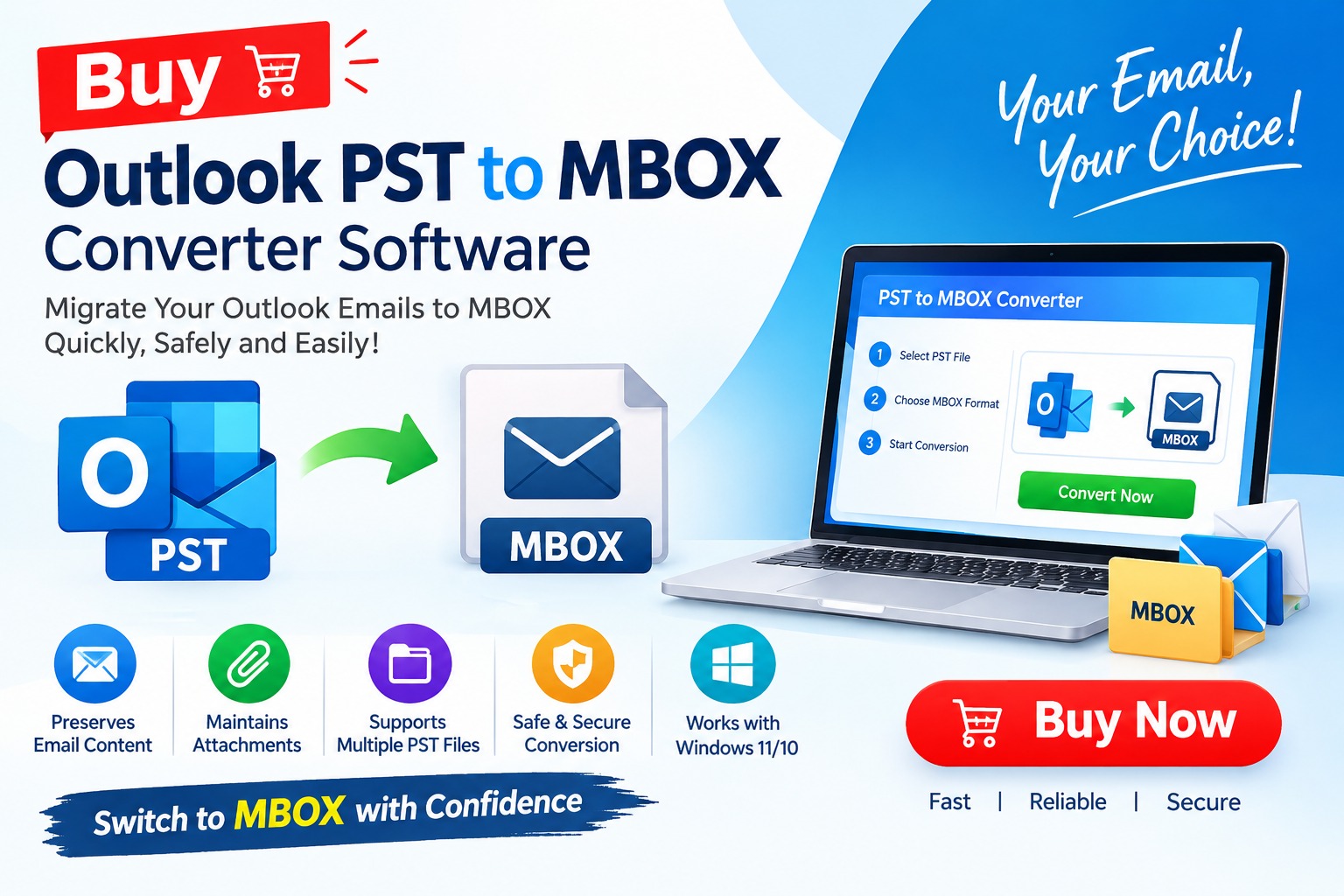
Are you looking for a reliable way to convert Microsoft Outlook PST files into MBOX format? Whether you are migrating emails to another email client, managing archived mailbox data, or preparing for a platform change, choosing the right Outlook PST to MBOX Converter Software can make the process easier and more efficient.
PST files are commonly associated with Microsoft Outlook, while MBOX is used by various email applications and mailbox-management tools. Because these formats store email data differently, converting between them requires a suitable conversion method that preserves important message information.
Professional PST to MBOX converter software can help simplify this process by providing a guided workflow for selecting PST files, converting mailbox data, and saving the resulting MBOX files for compatible applications.
If you need a practical solution for email migration, investing in reliable conversion software can save time and reduce the complexity of manual methods.
What Is Outlook PST to MBOX Converter Software?
Outlook PST to MBOX Converter Software is a utility designed to transform email data stored in Microsoft Outlook Personal Storage Table (PST) files into the MBOX mailbox format.
Depending on the product's capabilities, the software may support the conversion of email messages, attachments, message metadata, and mailbox folder structures. Supported features vary, so it is important to verify them before purchasing.
The software is particularly useful for individuals, IT administrators, and businesses that need to move email archives between applications or maintain access to older mailbox data.
Why Should You Buy PST to MBOX Converter Software?
Free methods may be suitable for small or straightforward migration tasks, but they can require additional steps, technical knowledge, or intermediate formats. Dedicated conversion software offers a more structured workflow.
A user-friendly interface can help you select a PST file, configure the conversion, and save the output without manually managing complex file-processing steps.
This is particularly useful for users who prefer a guided solution instead of a technical workaround.
Large PST files may contain years of emails and numerous attachments. A suitable conversion tool can help process these archives more efficiently, subject to its file-size limits, system requirements, and supported features.
Before buying, check whether the software supports your actual mailbox size and offers progress information during conversion.
Email migration is not just about transferring message text. Attachments, sender and recipient details, dates, subjects, and folder organization may also matter.
Look for a converter that documents which properties it preserves. Test a representative sample before processing your entire archive.
If you regularly work with archived mailboxes, a tool with batch processing can reduce repetitive work. Confirm whether the product supports multiple PST files, selective mailbox conversion, or folder-level selection.
These capabilities can be valuable for IT professionals and organizations managing several users' email archives.
Manual migration procedures may involve multiple applications and intermediate steps. Dedicated software can simplify the workflow, making it easier to repeat the process when handling additional archives.
Key Features to Look for Before Buying
Not every PST to MBOX converter offers the same functionality. Compare the following features before purchasing.
Choose features according to your actual migration requirements instead of paying for functionality you do not need.
How to Convert Outlook PST to MBOX Using Software
Although the precise workflow depends on the selected product, the general conversion process typically follows these steps.
Step 1: Install a Trusted Converter
Download the software from its official vendor website. Review the system requirements and install the application on a compatible computer.
Step 2: Select the PST File
Open the software and use its file-selection or browsing option to locate the Outlook PST file you want to convert.
Always work with a backup or a separate copy of important source data.
Step 3: Preview and Select Mailbox Data
If preview and selective conversion features are available, inspect the mailbox and select the folders or messages required for migration.
This step can help you avoid processing unnecessary data.
Step 4: Choose MBOX as the Output Format
Select MBOX as the destination format and configure any available output options.
If you plan to import the converted data into a particular email application, verify that the destination supports the generated MBOX variant.
Step 5: Start the Conversion
Begin the conversion and allow the software to complete processing. Avoid interrupting the operation, especially when handling large archives.
Step 6: Verify the Converted Data
Open the resulting MBOX file with a compatible application or import it using the destination application's supported procedure.
Check message counts, attachments, dates, and important folders before considering the migration complete.
Is Paid PST to MBOX Converter Software Better Than a Free Tool?
The right choice depends on the size of your mailbox, technical experience, budget, and migration requirements.
A free method may be sufficient if you have a small archive and are comfortable following manual instructions. Paid software may be more convenient when you need guided conversion, batch processing, selective export, technical support, or a repeatable workflow.
However, a paid tool is not automatically more accurate or secure. Evaluate documented features, vendor reputation, trial limitations, and conversion results before making a purchase.
For business-critical archives, conduct a small test migration and retain the original PST file until the converted data has been verified.
Who Needs an Outlook PST to MBOX Converter?
This type of software may be useful for:
Always ensure that you have permission to access and convert the mailbox data, particularly when working with organizational or customer archives.
Frequently Asked Questions
Can I convert PST to MBOX without Microsoft Outlook?
Some dedicated converters can process PST files without requiring Outlook to be installed. Requirements vary by product, so verify the vendor's compatibility documentation before buying.
Does PST to MBOX conversion preserve attachments?
Many tools offer attachment conversion, but support and results can vary. Test messages containing different attachment types and confirm that the files remain accessible after conversion.
Is there a free trial?
Some vendors provide a demo or trial version. Check whether it permits full conversion or only previewing and whether file counts or export limits apply.
Can I convert large PST files?
This depends on the converter's supported file size, available memory, storage, and system requirements. Check these limits before purchasing.
Is PST to MBOX conversion safe?
Use reputable software, download it from the official vendor, and preserve a backup of the original PST file. Review the privacy policy and data-handling practices before processing confidential email archives.
Conclusion: Choose the Right PST to MBOX Conversion Solution
Buying Outlook PST to MBOX Converter Software can be a practical option when you want a guided way to migrate email archives without relying on a complicated manual workflow. The best choice is one that supports your source PST files, generates compatible MBOX output, provides the features you actually need, and allows you to verify the converted data.
Before purchasing, compare the available features, review the trial version, and test a small mailbox. This approach helps you make an informed decision while reducing the risk of incomplete migration.
Ready to simplify your email migration? Explore a reputable PST to MBOX converter, review its features and licensing terms, and try the available demo or free trial before purchasing. Choose a solution that matches your mailbox requirements and helps you manage your email migration with confidence.
*try to Free Download enables you to preview & converted file and save 30 items per folder.




0 Comments