
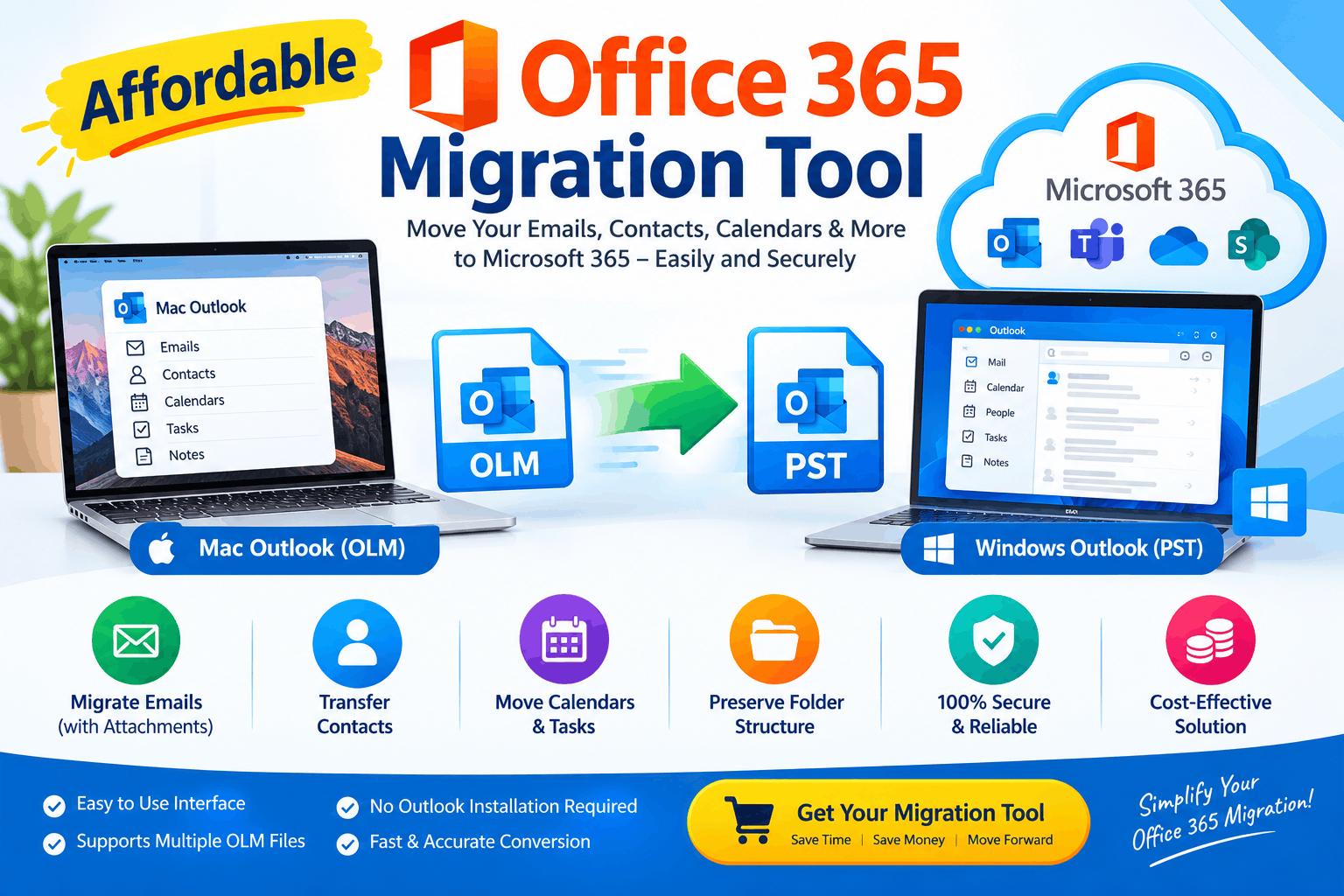
Migrating email data to Microsoft 365 can be a significant task for businesses, IT administrators, and individual users. Whether you are moving old email archives, transferring PST files, or consolidating mailbox data, choosing the right migration solution is essential. However, expensive software and complicated migration procedures can make the process challenging, especially for small businesses with limited IT budgets.
An Affordable Office 365 Migration Tool can help simplify the transfer of supported email data to Microsoft 365 while reducing manual effort and unnecessary expenses. The right solution should combine practical features, reliable data processing, straightforward operation, and transparent pricing.
In this guide, we explore the benefits of affordable migration software, essential features to evaluate, common migration scenarios, and how to select a tool that fits your technical requirements and budget.
What Is an Office 365 Migration Tool?
An Office 365 Migration Tool is software designed to transfer supported email data and other mailbox information into Microsoft 365, including Exchange Online. Depending on the product, it may support migration from PST files, IMAP accounts, other email platforms, or different Microsoft 365 environments.
These tools help users move mailbox data without manually recreating every email or folder. Some solutions also provide options for batch processing, selective migration, folder mapping, and progress reporting.
The capabilities of individual products vary considerably. Before purchasing an affordable Office 365 migration solution, verify that it supports your source platform, destination environment, authentication requirements, and required data types.
Why Choose an Affordable Office 365 Migration Tool?
Affordable migration software can help organizations control costs without sacrificing the features they actually need.
Businesses often need to migrate multiple mailboxes or large email archives. Choosing a solution with suitable licensing and pricing can help control project costs, especially when recurring subscriptions or per-mailbox charges are involved.
Compare the total cost of ownership, including license limits, mailbox capacity, technical support, and any additional services required.
A user-friendly migration application can reduce the complexity of transferring supported data. Clear configuration options and guided workflows can help users complete migration tasks with less manual intervention.
Depending on the software, users may need to migrate PST files, transfer IMAP email, or move mailbox data between Microsoft 365 tenants. Selecting a tool that supports your specific scenario can prevent the need to purchase multiple applications.
Features such as batch processing, automatic folder mapping, and migration reports can help reduce repetitive work. These capabilities are especially valuable when transferring several mailboxes.
Small organizations may not have dedicated migration specialists. An affordable tool with clear instructions, appropriate documentation, and accessible technical support can make the process easier to manage.
Essential Features of the Best Affordable Office 365 Migration Tool
Low price alone does not guarantee a suitable migration solution. Evaluate the following features before making a purchase.
PST to Office 365 Migration
If your organization stores historical emails in PST files, confirm that the tool supports importing those files into the intended Microsoft 365 mailboxes. Check any limitations related to file sizes, folder structures, and supported mailbox items.
IMAP Email Migration
Some businesses need to transfer email from IMAP-compatible providers to Microsoft 365. Verify support for your source provider, authentication method, folder mapping, and the types of messages that can be migrated.
Bulk Mailbox Migration
Batch migration allows users to process multiple mailboxes through a coordinated workflow. Check the maximum number of mailboxes supported, licensing restrictions, and whether the tool can resume interrupted jobs.
Selective Data Migration
Selective migration allows users to transfer particular folders or supported data rather than moving an entire mailbox. This can help reduce unnecessary data transfer and simplify migration planning.
Folder Structure and Attachment Preservation
Emails may contain attachments, timestamps, sender details, and nested folder structures. Review the software documentation and test representative messages to verify which properties are preserved.
Migration Reports
Progress reports and error logs help administrators identify incomplete transfers and investigate failed items. A good reporting system should make it easier to verify results and plan corrective action.
Security and Authentication
Microsoft 365 migration may involve sensitive business information. Verify the application's authentication requirements, permissions, encryption practices, and handling of credentials or temporary data. Use authorized accounts and grant only the permissions necessary for the migration.
Transparent Pricing
Before buying, check whether the license is based on mailbox count, data volume, subscription duration, or a one-time payment. Review activation limits, updates, support, and trial restrictions to avoid unexpected costs.
How to Migrate Data to Office 365 Using Migration Software
The exact workflow depends on your source platform and the tool you choose. A typical migration process includes these steps.
Step 1: Identify the source data. Determine whether you need to migrate PST files, IMAP email, or mailbox data from another supported environment.
Step 2: Prepare Microsoft 365. Confirm that the destination tenant and user mailboxes are ready. Verify licenses, permissions, and authentication requirements.
Step 3: Select compatible software. Choose an affordable migration tool that explicitly supports your source and destination. Review its system requirements and documentation.
Step 4: Connect or select the source. Depending on the migration type, add the source files or configure access to the source mailbox.
Step 5: Configure the destination. Authenticate with the appropriate Microsoft 365 account or authorized migration method. Map each source mailbox to the correct destination mailbox.
Step 6: Select the migration scope. Choose the required folders, mailboxes, or supported data types. For large projects, consider a small pilot migration before processing everything.
Step 7: Start the migration. Run the process and monitor progress reports, warnings, and errors.
Step 8: Verify the results. Check message counts, attachments, dates, and folder structures. Review failed items and resolve issues before decommissioning the source environment.
Always retain appropriate backups and follow your organization's data retention and security policies.
Free vs. Paid Office 365 Migration Software
Free migration tools can be suitable for limited tasks, but they may restrict mailbox counts, data volume, supported source platforms, or export functionality.
Paid software may offer broader compatibility, batch processing, selective migration, detailed reports, and technical support. However, not every paid product includes these features, so compare actual specifications rather than relying on price alone.
Before purchasing, test a trial version when available. Confirm whether the trial permits complete migration, limits the number of items, or provides only scanning and preview capabilities.
For organizations migrating business-critical email, the cheapest option may not be the most economical if it creates additional troubleshooting work or lacks the required functionality.
How to Choose the Right Affordable Migration Solution
Use these criteria to compare available tools:
The best tool is one that meets your migration requirements at a reasonable total cost.
Frequently Asked Questions
What is the best affordable Office 365 Migration Tool?
The best option depends on your source platform, mailbox count, required features, budget, and security requirements. Compare compatible products and test them with representative data.
Can I migrate PST files to Microsoft 365?
Yes. Microsoft provides supported PST import methods, and compatible third-party tools may offer additional migration workflows. Check the current requirements for your tenant and intended import method.
Can an Office 365 Migration Tool transfer multiple mailboxes?
Some tools support bulk mailbox migration. Confirm the product's mailbox limits, authentication requirements, and licensing terms before purchasing.
Is free Office 365 migration software available?
Some free tools and built-in Microsoft methods are available for particular migration scenarios. Their suitability depends on your source, destination, and project requirements.
How can I prevent data loss during migration?
Back up source data, perform a pilot migration, monitor error reports, and verify the destination mailbox before considering the project complete.
Conclusion
An affordable Office 365 Migration Tool can make email migration more manageable by combining practical features with cost-effective licensing. The right solution should support your specific migration scenario, preserve the required data, provide useful reporting, and meet your security needs.
Before buying, compare the features and total costs, check compatibility, and test the migration workflow. A well-planned process can help reduce avoidable errors and make the transition to Microsoft 365 more efficient.
Looking for a cost-effective Office 365 migration solution? Evaluate tools that match your source data, mailbox volume, and budget, and choose one that lets you verify migration quality before committing to a full deployment.
*try to Free Download enables you to preview & converted file and save 30 items per folder.




0 Comments