
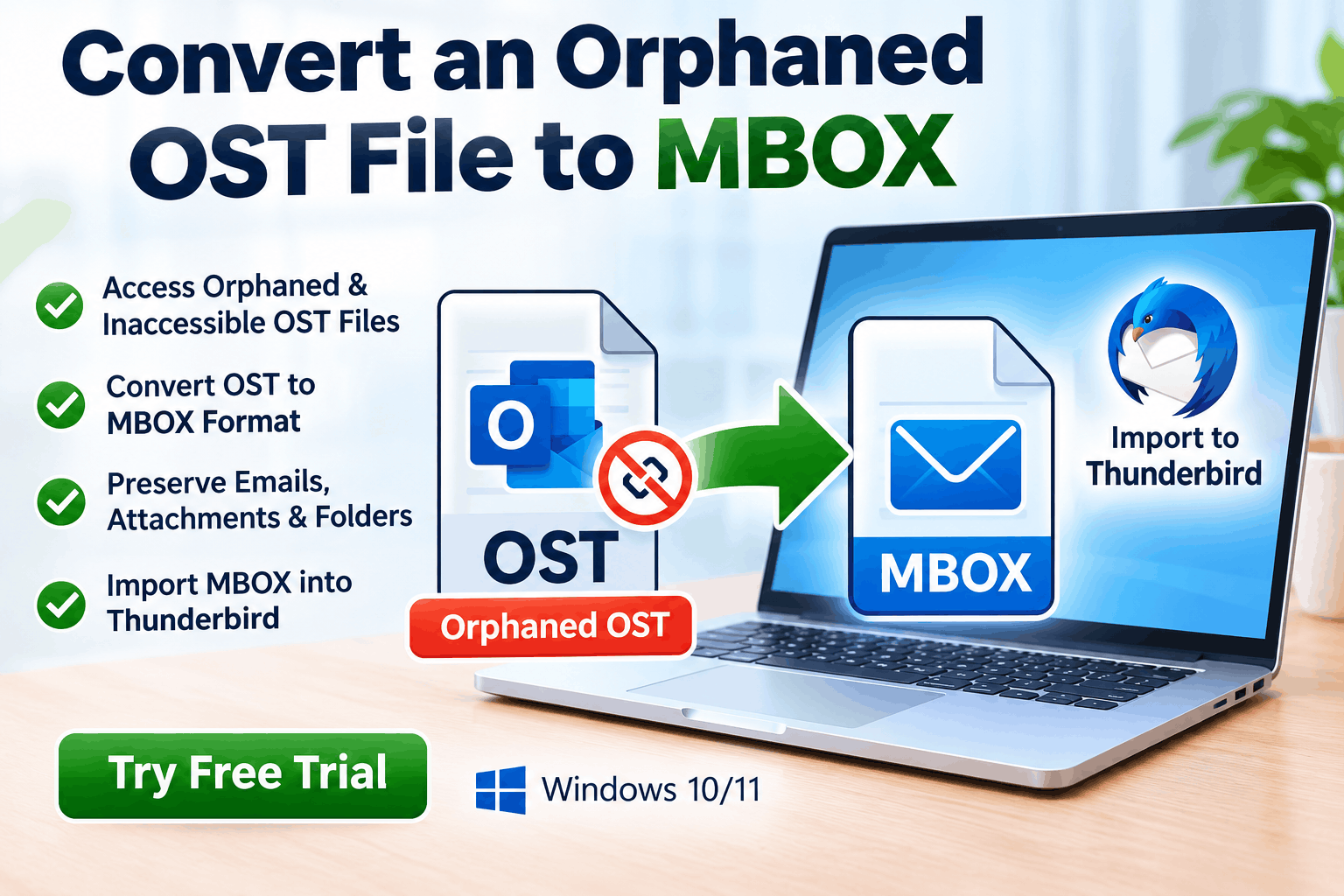
Have you lost access to your Outlook account but still need the emails stored in an orphaned OST file? An orphaned OST file can contain important business correspondence, attachments, project records, and personal emails. When Outlook can no longer connect to the original mailbox, accessing this data may become difficult.
The good news is that there are several approaches worth exploring. Depending on the condition of the OST file, your access to the original account, and the version of Outlook you use, you may be able to restore mailbox access or convert recoverable email data into MBOX format.
In this guide, you will learn what an orphaned OST file is, why conversion can be challenging, and how to convert an orphaned OST file to MBOX using practical methods and dedicated OST to MBOX Converter Software.
What Is an Orphaned OST File?
An OST (Offline Storage Table) file is a local data file used by Microsoft Outlook to store synchronized mailbox data for offline access. It is commonly associated with Exchange, Microsoft 365, and other supported account configurations.
An OST file may become orphaned when Outlook loses access to the account or profile with which the file was originally associated.
Common situations include:
An orphaned OST file is not necessarily damaged. However, it may not be possible to open it normally in a newly configured Outlook profile.
Why Convert an Orphaned OST File to MBOX?
MBOX is a mailbox format supported by several email applications, including Mozilla Thunderbird. Converting recoverable OST data to MBOX can help users migrate email messages into compatible applications or preserve mailbox information in a more portable format.
Key benefits include:
Email portability: MBOX can make email migration between supported applications easier.
Long-term archiving: Exported mailboxes can be stored separately from the original Outlook environment.
Access to email records: Users may be able to access recovered messages through an MBOX-compatible email client.
Simplified migration: MBOX may be suitable when moving email data into a platform that supports importing this format.
However, conversion does not automatically restore access to every item in an OST file. Results depend on the file's condition, encryption, and whether the required mailbox data is recoverable.
Method 1: Restore Access Through the Original Outlook Account
Before using a conversion tool, determine whether the original mailbox can be restored.
Follow these steps:
If the mailbox is accessible again, exporting its contents through Outlook or an approved migration solution may be more reliable than attempting to extract data from an orphaned OST file.
Limitation: Creating a new Outlook profile does not necessarily make an old OST file usable. OST files are generally associated with their original account and profile, and Outlook may create a new data file instead.
Method 2: Use an Existing Backup or Recoverable Mailbox Copy
A backup may provide the simplest route to recovering important email data.
Check the following locations:
If you locate an accessible mailbox copy, you may be able to export the messages into a supported format and then convert them to MBOX if required.
Before restoring anything, preserve the original OST file and work with a copy. This helps prevent accidental changes to the only available source of your email data.
Method 3: Convert an Orphaned OST File Using OST to MBOX Converter Software
When the original account is unavailable and no usable backup exists, dedicated OST to MBOX Converter Software may be an option.
Such tools are designed to process supported OST files and export recoverable mailbox content into MBOX format. Their capabilities vary, so confirm that the specific product supports orphaned or inaccessible OST files before purchasing it.
Step-by-Step Conversion Process
Step 1: Prepare the OST file
Locate the orphaned OST file on your computer or approved storage location. Keep an unchanged backup and ensure you have permission to access the data.
Step 2: Install a compatible converter
Choose an OST to MBOX Converter that explicitly supports your OST file type and the recovery scenario you are facing. Review the vendor's documentation and privacy policy.
Step 3: Select the source file
Launch the software and use its file-selection or browsing option to locate the orphaned OST file.
Step 4: Scan and preview recoverable data
If the tool supports scanning and previewing, inspect the available folders, messages, and attachments. Check whether the software can process the file without requiring the original Outlook profile.
Step 5: Choose MBOX as the output format
Select MBOX as the destination format if it is supported. Review any options for selecting individual folders, exporting attachments, or preserving the mailbox structure.
Step 6: Start the export
Choose an appropriate output location and begin the conversion. Processing time will depend on the OST file size, file condition, and software performance.
Step 7: Verify the converted mailbox
Open the resulting MBOX file in a compatible email application, such as Thunderbird, using its supported import procedure. Check message counts, folder organization, attachments, and representative emails.
This workflow is a general guide. Exact buttons and supported features vary by product, and not every orphaned OST file can be converted successfully.
Important Challenges During OST to MBOX Conversion
A corrupted file may prevent scanning or produce incomplete results. Some tools can handle certain forms of corruption, but severe damage may make parts of the mailbox unrecoverable.
Some OST files depend on the original account, profile, or encryption-related information. A converter may not be able to recover data that it cannot decrypt or interpret.
Large OST files may require additional storage, memory, and processing time. Ensure the destination drive has enough free space before starting the export.
Not all tools preserve every mailbox property. Verify that important attachments, message dates, sender information, and folder organization are retained where supported.
How to Choose the Best OST to MBOX Converter Software
Before purchasing a converter, evaluate these essential features:
A reliable product description should explain its limitations instead of promising guaranteed recovery from every orphaned OST file.
Frequently Asked Questions
Can I convert an orphaned OST file to MBOX without Outlook?
Some dedicated conversion tools support direct processing of orphaned OST files without requiring a functioning Outlook profile. Confirm this capability with the vendor because compatibility varies.
Is it possible to convert a corrupted OST file to MBOX?
Possibly. The outcome depends on the severity of corruption and the software's recovery capabilities. Some messages may remain inaccessible.
Can I convert OST files to MBOX for Thunderbird?
Yes, if you can recover the mailbox data and use a converter that supports MBOX export. You can then import the resulting MBOX data using a compatible Thunderbird import method.
Will conversion preserve email attachments?
That depends on the converter and the condition of the source file. Always verify attachments and important messages after conversion.
Is a free OST to MBOX converter sufficient?
A free tool may work for supported scenarios, but it may impose file-size, preview, or export limitations. Compare its capabilities with your recovery requirements before deciding.
Conclusion
Converting an orphaned OST file to MBOX can help preserve and migrate recoverable Outlook email data when the original mailbox is no longer accessible. Start by checking whether the original account can be restored or whether a usable backup exists. If neither option works, evaluate a compatible OST to MBOX Converter that explicitly supports orphaned files.
Always preserve the original OST file, verify the converter's limitations, and check the exported MBOX data before relying on it for business or personal records.
Need a practical migration solution? Explore an OST to MBOX Converter Software free trial, if available, and verify support for orphaned OST files before purchasing. Choose a solution that clearly explains its recovery capabilities, preserves supported email data, and protects your privacy.
*try to Free Download enables you to preview & converted file and save 30 items per folder.




0 Comments