
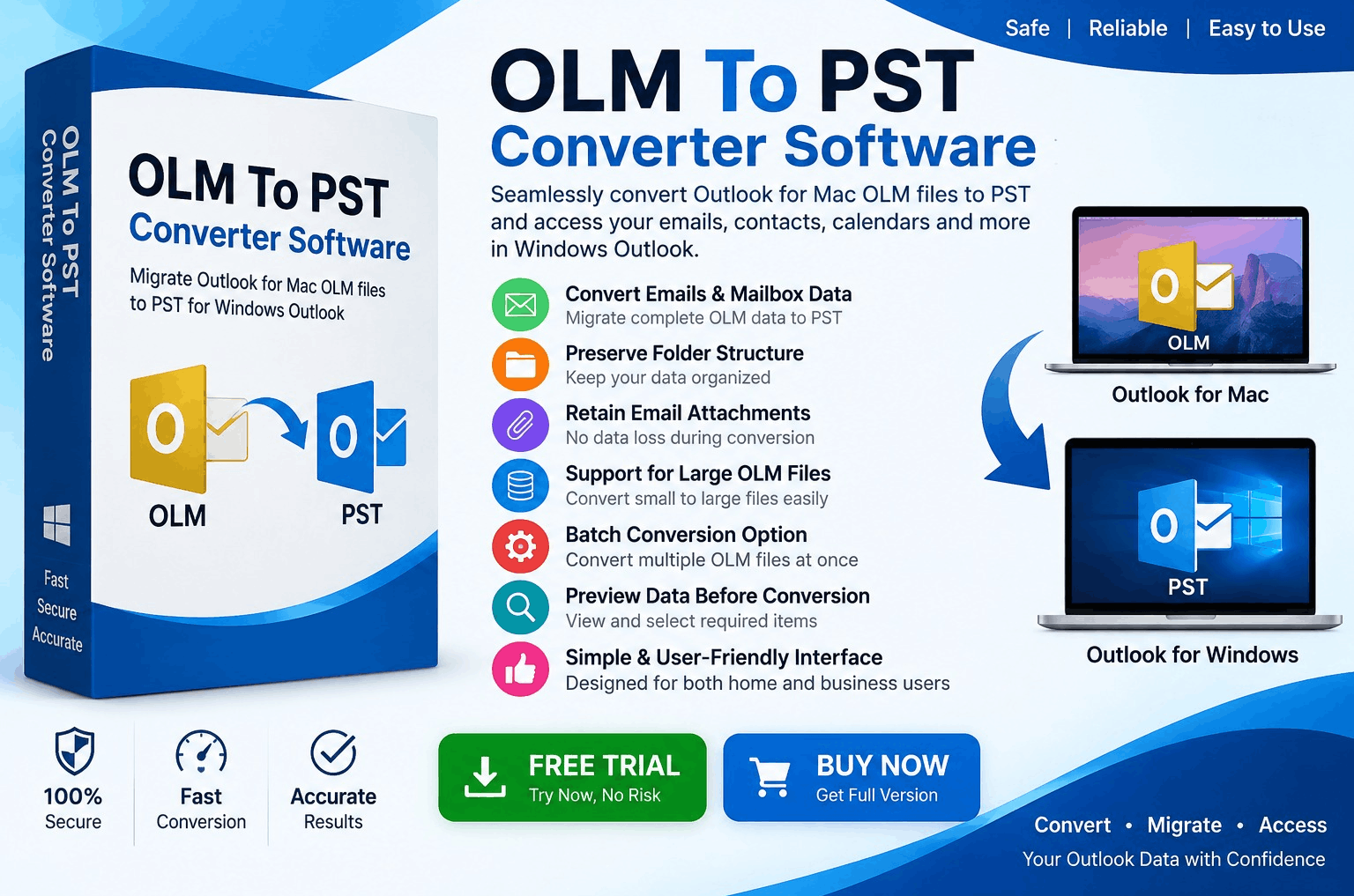
If you have used Outlook for Mac, you may have an OLM file containing emails, contacts, calendars, and other mailbox data. The problem usually begins when you move to a Windows computer and discover that your OLM file is not designed to be opened directly in Outlook for Windows.
So, how can you open an OLM file in Outlook for Windows?
Quick Answer: OLM is the Outlook data-file format used by Outlook for Mac, while Outlook for Windows primarily works with PST and OST data files. In many migration scenarios, the practical approach is to convert the OLM file to PST and then import or open the resulting PST in compatible Outlook for Windows. The exact steps depend on your Outlook version and migration requirements.
This guide explains the difference between OLM and PST, why direct opening can be difficult, and the main methods available for moving OLM data to Outlook for Windows.
What Is an OLM File?
An OLM file is a data archive associated with Outlook for Mac.
It can contain different types of Outlook information, including:
OLM files are commonly created when Outlook for Mac users export mailbox data for backup, archiving, or migration.
For example, you might have:
My Outlook Archive.olm
If you move from a Mac environment to Windows, you may want to access that data through Outlook for Windows.
This is where the OLM-to-PST conversion process becomes relevant.
Why Can't I Simply Open an OLM File in Outlook for Windows?
The primary issue is file-format compatibility.
Outlook for Mac uses OLM for certain export/archive operations, whereas Outlook for Windows traditionally uses PST (Personal Storage Table) for many local mailbox-data scenarios.
Think of OLM and PST as two different containers.
Simple ELI5 Explanation
Imagine you have a box designed to fit a Mac-specific storage system.
You take that box to a Windows system and try to put it directly into a different type of storage cabinet.
The information may be perfectly good, but the cabinet does not necessarily know how to read that particular box.
Converting OLM to PST is similar to moving the contents into a container that Outlook for Windows can work with.
Can Outlook for Windows Directly Open OLM?
Generally, you should not expect Outlook for Windows to directly open an OLM archive in the same way it can work with a compatible PST file.
This is an important distinction because many users search for an "Open OLM" option inside Outlook for Windows and cannot find one.
The supported migration path can also vary according to the specific Outlook version you're using.
Therefore, before choosing a method, identify:
Method 1: Convert OLM to PST
For many users, OLM to PST conversion is the most straightforward approach when the destination is Outlook for Windows.
The general workflow is:
OLM File → OLM to PST Conversion → PST File → Outlook for Windows
A dedicated OLM to PST Converter Software can be used when the migration involves an archive that needs to be converted outside the original Outlook environment.
Typical Steps
Step 1: Create a backup of your original OLM file.
Step 2: Install a reputable OLM-to-PST conversion application that supports your OLM version.
Step 3: Add or select the OLM file.
Step 4: Allow the software to scan the file.
Step 5: Preview the mailbox data if the application provides a preview feature.
Step 6: Select PST as the output format.
Step 7: Choose an output folder.
Step 8: Start the conversion.
Step 9: Verify the resulting PST file.
Step 10: Import or open the PST using a compatible Outlook for Windows environment.
Method 2: Use Outlook for Mac and an Email Account
If you still have access to Outlook for Mac and the mailbox is associated with an email account, another migration strategy may be possible.
The general concept is:
Outlook for Mac → Email Account/Server → Outlook for Windows
Instead of converting the OLM file directly, you can potentially synchronize mailbox data through the supported account infrastructure.
However, this approach depends on:
This method may not be suitable when your OLM contains data that exists only locally.
Method 3: Export or Migrate Through Supported Mailbox Services
In some environments, users can move mailbox information through a supported cloud or mail service.
For example, if the same mailbox account is configured on both Mac and Windows, synchronized data may become available on the Windows side without directly opening the OLM file.
However, this is different from converting an OLM archive.
If your OLM is an offline archive, simply configuring the same account on Windows may not make that historical archive appear.
Why OLM to PST Conversion Is Often Preferred
A dedicated conversion workflow can be particularly useful when:
A good converter should clearly document the OLM versions and data types it supports.
How to Choose OLM to PST Converter Software
Not every conversion application provides the same features.
Before selecting software, look for:
OLM Compatibility
Confirm that the software supports your particular OLM file.
PST Output
The application should generate a usable PST suitable for your target Outlook environment.
Folder Preservation
If your mailbox has folders such as:
check whether the software preserves the organization.
Attachment Preservation
Important business emails often contain attachments. Test whether attachments are correctly transferred.
Selective Conversion
If you don't need everything, selective conversion can reduce unnecessary processing.
Preview
A preview feature can help you confirm that the OLM contains the expected mailbox data before conversion.
Batch Processing
For organizations with multiple OLM files, batch conversion can make the migration more efficient.
How to Import the PST Into Outlook for Windows
After obtaining a PST file, the next stage is to make the data available in Outlook.
The exact interface differs between Outlook versions, but a compatible Outlook environment generally provides options for working with or importing PST files.
In a supported classic Outlook environment, the workflow commonly involves:
Outlook → File → Open & Export → Import/Export
From there, users can select an option to import data from an Outlook data file and follow the prompts.
If you're using new Outlook for Windows, PST support and import capabilities can differ from classic Outlook, so check the current Microsoft documentation for your specific version before starting.
What About Contacts and Calendars?
Email conversion is only part of an OLM migration.
Depending on the software and migration method, OLM data may include:
Don't assume that every OLM-to-PST tool supports every data type.
If contacts or calendars are important, verify those items separately after conversion.
How to Convert Multiple OLM Files to PST
Businesses sometimes have multiple archives, such as:
Processing each file manually can be repetitive.
If your converter supports batch OLM to PST conversion, you may be able to select multiple source files and process them through a single workflow.
Before performing a large migration:
This reduces the risk of discovering a compatibility problem after the entire migration has been completed.
How to Convert a Large OLM File to PST
Large OLM files require additional planning.
Before conversion, check:
Don't interrupt the process unnecessarily.
After conversion, verify that the PST contains the expected data.
For particularly large archives, a staged migration can be easier to manage than processing everything at once.
Common Problems During OLM to PST Migration
Problem 1: OLM File Is Not Recognized
The software may not support the particular OLM version or file structure.
Solution: Check compatibility and test another supported application.
Problem 2: Missing Attachments
Attachments may not have been converted correctly.
Solution: Test several messages containing different attachment types.
Problem 3: Folder Structure Changes
The output may organize folders differently from the original.
Solution: Compare the original OLM structure with the resulting PST.
Problem 4: Conversion Stops
Large files or problematic data can cause processing difficulties.
Solution: Check available storage, application requirements, and error logs.
Problem 5: PST Doesn't Open
The generated PST may be incompatible, damaged, incomplete, or affected by the target Outlook environment.
Solution: Test the PST using an appropriate supported Outlook configuration and retain the original OLM.
Best Practices for OLM to PST Migration
Always Keep the Original
Never delete your OLM file immediately after conversion.
Work With a Copy
Use a duplicate of the original archive whenever possible.
Test Before Full Migration
Convert a small representative OLM file first.
Verify the Output
Check:
Use Reputable Software
Avoid unknown or cracked applications, especially when handling confidential business emails.
Check Privacy
If using an online conversion service, understand whether your OLM data is uploaded to a remote server. For confidential archives, local processing may be preferable.
Frequently Asked Questions
Can I open an OLM file directly in Outlook for Windows?
Generally, OLM is not the native Windows Outlook data format. A common approach is to convert OLM to PST and then use the resulting PST in a compatible Outlook environment.
What is the best way to open OLM on Windows?
For an independent OLM archive, converting it to PST is often the practical approach when your destination is Outlook for Windows.
Can I convert OLM to PST without a Mac?
Yes, some dedicated OLM-to-PST conversion applications are designed to process OLM files independently. Check the specific product's requirements.
Can I convert a large OLM file to PST?
Yes, provided the selected software supports the file size and your system has sufficient resources and storage.
Can multiple OLM files be converted to PST?
Yes, if the selected converter provides batch-processing functionality.
Will attachments be preserved?
Many conversion tools support attachment preservation, but you should verify the results using sample emails before completing a large migration.
Final Thoughts
Opening an OLM file in Outlook for Windows isn't usually as simple as double-clicking the archive because OLM and PST are associated with different Outlook platforms and data workflows.
For an independent Mac Outlook archive, the practical migration path is often:
OLM → PST → Outlook for Windows
Before starting, identify your Outlook versions, back up the OLM file, and determine exactly which mailbox data you need to migrate. If you choose OLM to PST Converter Software, prioritize compatibility, folder preservation, attachment handling, selective conversion, batch support, preview capabilities, and secure processing.
For a small migration, a manual or account-based approach may be sufficient. For large or complex archives, dedicated conversion software can provide a more structured workflow.
Most importantly, verify the resulting PST before deleting the original OLM file. A successful migration means more than simply creating a PST—it means ensuring that the important emails, folders, attachments, and other required mailbox information remain accessible in your Windows Outlook environment.
*try to Free Download enables you to preview & converted file and save 30 items per folder.




0 Comments