
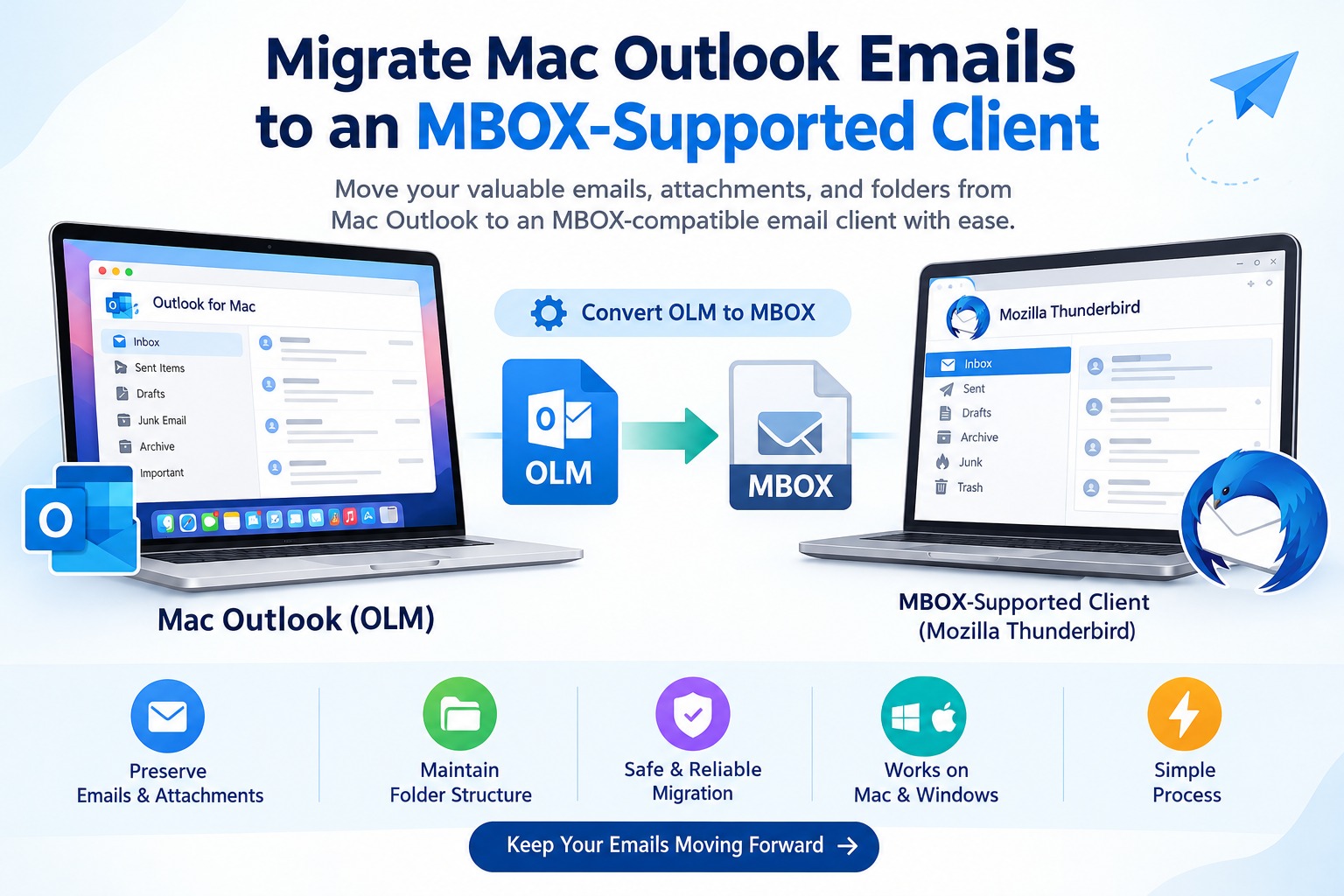
Migrating emails from Microsoft Outlook for Mac to an MBOX-supported email client can be challenging when your mailbox contains years of messages, attachments, contacts, and organized folders. Outlook for Mac stores exported mailbox data in the OLM format, while many email applications support the MBOX format for storing email messages. Because these formats are different, users typically need an appropriate export or conversion process to move their emails successfully.
Whether you are switching to Mozilla Thunderbird, moving to another MBOX-compatible application, or archiving emails for long-term access, understanding the migration process helps reduce errors and protect important data.
In this guide, we explain how to migrate Mac Outlook emails to an MBOX-supported client, compare available methods, and discuss when dedicated OLM to MBOX Converter Software may be useful.
Understanding OLM and MBOX File Formats
Before starting the migration, it is important to understand the formats involved.
What is an OLM file?
OLM is a mailbox archive format used by Outlook for Mac. An exported OLM file can contain email messages, attachments, and other mailbox items, depending on the Outlook version and export options used.
What is an MBOX file?
MBOX is a mailbox storage format supported by various email applications and utilities. It stores email messages in a mailbox file, making it useful for transferring or archiving messages between compatible systems.
The primary challenge is that an email client may not import OLM files directly. Therefore, users must determine whether their destination application supports an OLM import method or requires conversion to MBOX.
Why Migrate Mac Outlook Emails to MBOX?
There are several reasons to move emails from Outlook for Mac to an MBOX-supported email client.
Before choosing a method, check whether the destination application supports importing MBOX files and whether it can preserve the mailbox structure you need.
Method 1: Export OLM Files from Outlook for Mac
The first step is to create an OLM archive from your Outlook mailbox, if your Outlook version supports exporting to this format.
Follow these steps:
Keep the original mailbox intact until you have verified the export. For important business email, create an additional backup before proceeding.
Important: Exporting to OLM does not automatically produce an MBOX file. A separate supported import or conversion step may be required.
Method 2: Convert OLM to MBOX Using Dedicated Software
When the destination email client cannot import OLM files directly, dedicated OLM to MBOX Converter Software may provide a more convenient migration workflow.
A suitable converter should support your OLM file version and allow you to select the mailbox data you need.
General conversion procedure
Before purchasing a commercial tool, verify its supported Outlook versions, attachment handling, folder preservation, batch conversion capabilities, and trial limitations.
For large mailboxes, test a small sample first. This helps you identify compatibility problems before processing the entire archive.
Method 3: Import MBOX Files into Mozilla Thunderbird
Once your emails are available in MBOX format, the next step is to import them into a compatible email client.
Mozilla Thunderbird is a popular option, but its available import workflows can vary by version and installed extensions.
Follow this general process:
If you intend to use an email account rather than local storage, check the account's supported import and synchronization options. Importing messages locally does not necessarily upload them to the mail server.
Method 4: Verify the Migrated Emails
A successful conversion is not simply a matter of generating MBOX files. The resulting mailbox must also be usable.
After importing the data, check the following:
Keep your original OLM archive and backup until you are satisfied with the results. If messages are missing or unreadable, avoid deleting the source files while troubleshooting.
Common Migration Problems and Solutions
OLM and MBOX are different formats. Check the destination application's supported import methods or convert the OLM archive into MBOX using a compatible tool.
Check the original message in Outlook and compare it with the converted version. Some conversion tools have limitations, so test important attachment types before migrating the complete mailbox.
Large archives may require substantial storage and processing time. Ensure sufficient free disk space, avoid interrupting the conversion, and consider processing supported mailbox selections separately.
Some clients represent imported mailboxes differently. Review the import settings and destination folder structure before moving all your data.
Duplicates may result from importing the same archive more than once or combining overlapping mailboxes. Back up the destination profile before removing duplicates.
How to Choose the Right OLM to MBOX Converter
When evaluating conversion software, focus on practical requirements rather than promotional claims alone.
Look for:
If you are comparing commercial solutions, test the trial version with representative emails before purchasing. Do not assume that every converter supports all Outlook versions or preserves every mailbox property.
Frequently Asked Questions
Can I migrate Mac Outlook emails to Thunderbird?
Yes, provided you use an import workflow supported by your Thunderbird version. Depending on your source data, this may involve exporting OLM files and converting them to MBOX first.
Can I convert OLM to MBOX without Outlook installed?
Some third-party converters may process previously exported OLM files without requiring Outlook to be installed. Check the specific product's system requirements before relying on this capability.
Will the migration preserve attachments?
Attachments can be preserved by a suitable conversion process, but results depend on the source data and tool. Verify representative messages after conversion.
Is a free OLM to MBOX converter available?
Free tools and trial versions may be available, but they can have limitations involving file size, export functions, or batch processing. Review the restrictions before starting a large migration.
Should I delete my OLM file after conversion?
No. Keep the original archive and a separate backup until you have confirmed that the migrated emails are complete and accessible.
Conclusion
Migrating Mac Outlook emails to an MBOX-supported client requires a clear understanding of the source format, the destination application's import capabilities, and the conversion process. Start by exporting your mailbox to OLM where supported, use a compatible import or conversion method to create MBOX files, and then import and verify the resulting messages.
For users with large archives or multiple mailboxes, dedicated OLM to MBOX Converter Software may simplify the process by providing a structured conversion workflow. Compare supported formats, attachment handling, trial limitations, and pricing before selecting a solution.
Ready to plan your migration? Review your mailbox requirements, back up your original data, and test the conversion with a small sample before moving your complete email archive.
*try to Free Download enables you to preview & converted file and save 30 items per folder.




0 Comments