
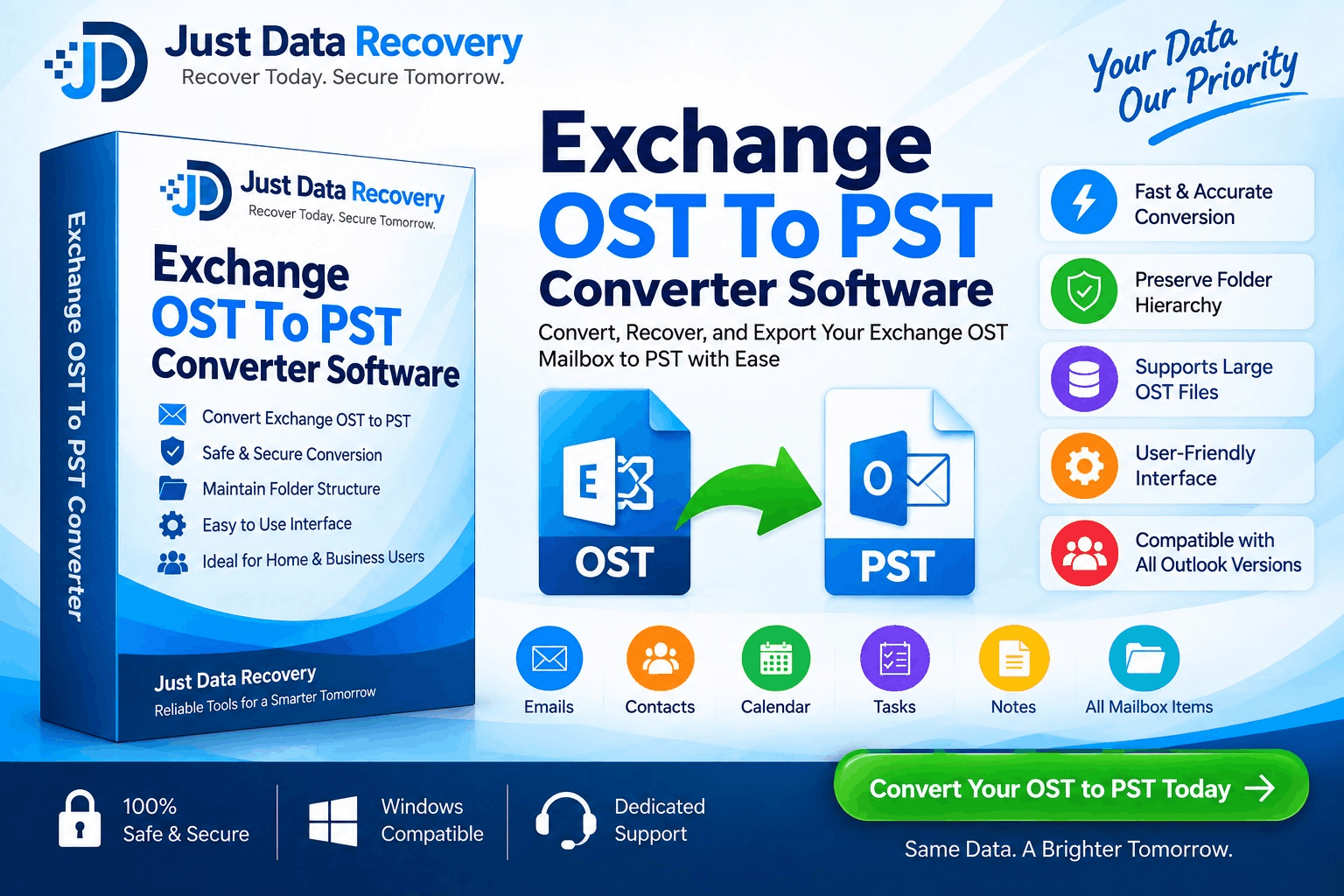
When an Exchange account is configured in Microsoft Outlook, an OST (Offline Storage Table) file can store a local synchronized copy of mailbox data. It allows users to work with email and other mailbox information even when the Exchange connection is temporarily unavailable.
But what happens when you need to move that data to another Outlook profile, archive it, recover information from an inaccessible account, or create a portable copy? This is where OST to PST conversion becomes useful.
The important point is that OST and PST are different Outlook data formats. Simply changing the .ost extension to .pst does not convert the file. Depending on the condition of the OST and whether the original Exchange account is still accessible, you can use different approaches.
This guide explains how to convert Exchange OST to PST, including practical methods, limitations, professional conversion software, and best practices.
What Is an Exchange OST File?
An OST file is an offline Outlook data file associated with an Exchange-based mailbox or other supported account configurations.
It can contain synchronized copies of mailbox information such as:
The OST allows Outlook to synchronize local data with the server.
However, an OST is generally associated with the profile/account that created it. It is not intended to function like a portable PST archive that can simply be copied between unrelated Outlook profiles.
What Is a PST File?
A PST (Personal Storage Table) file is an Outlook data file commonly used for:
This difference explains why users often need to convert OST to PST when they want a more portable representation of mailbox data.
Can Exchange OST Be Converted to PST?
Yes, but the appropriate method depends on your situation.
If the Exchange account is still working and the mailbox is accessible, you may be able to use Outlook's built-in export functionality to create a PST.
If the Exchange account is unavailable and you only have an old or orphaned OST file, built-in Outlook export options may not be sufficient. In that situation, specialized OST to PST Converter Software can be used to scan the local OST and export available mailbox data to PST, depending on the file condition and software capabilities.
Method 1: Export Exchange Mailbox to PST Using Outlook
If the Exchange account is still accessible, using Outlook's built-in export capability is generally the first method to consider.
Step 1: Open Outlook
Sign in to the relevant Outlook profile containing the Exchange mailbox.
Make sure the required mailbox data is synchronized and visible.
Step 2: Open the Import/Export Option
In supported versions of classic Outlook, open the import/export functionality and choose the option to export mailbox data.
The exact menu names can vary by Outlook version.
Step 3: Select Outlook Data File
Choose Outlook Data File (.pst) as the destination format.
Step 4: Select Folders
Choose the mailbox folders you want to export.
You may select the entire mailbox or particular folders such as:
If available, include subfolders.
Step 5: Choose the Destination
Specify where the PST should be saved.
Make sure the destination has enough free disk space.
Step 6: Complete the Export
Start the export and allow Outlook to create the PST.
Once finished, verify the resulting PST before deleting or changing the original mailbox data.
Method 2: Convert an Offline or Orphaned OST to PST
The situation is different when you have an OST file but cannot access the original Exchange account.
For example:
In such cases, a dedicated OST to PST Converter Software may be useful.
The typical workflow is:
OST File → Scan → Preview → Select Data → Export to PST → Verify
Step 1: Create a Copy of the OST
Before attempting conversion, make a backup copy of the original OST.
For example:
Original OST → Backup → Working Copy
This protects the original file if the conversion process encounters an issue.
Avoid modifying or deleting the source file until the resulting PST has been fully checked.
Step 2: Install OST to PST Converter Software
Choose software that specifically supports the OST format and your particular Outlook/Exchange environment.
Important features to look for include:
Always check the vendor's current compatibility information before purchasing or using the software.
Step 3: Add the OST File
Launch the converter and select the option to open or add an OST file.
Browse to the location of your working copy.
The software should analyze the file and identify available mailbox structures.
The amount of time required depends on factors such as OST size, storage speed, system resources, and the condition of the database.
Step 4: Scan the OST
Start the scanning process.
The application examines the OST database and attempts to identify available mailbox data.
For a healthy OST, scanning may be relatively straightforward.
If the file is damaged or inaccessible, recovery results can vary.
Important: No recovery application can guarantee that every item will be recoverable from every corrupted or severely damaged OST.
Step 5: Preview the Recovered Data
A preview feature is one of the most useful features in an OST-to-PST converter.
Review folders such as:
Open several messages and verify their content.
If attachments are important, check whether they are displayed correctly in the preview.
Step 6: Select the Required Mailbox Data
You may not need to convert the entire OST.
If supported by the software, select specific:
Selective conversion can reduce processing time and produce a smaller PST.
Step 7: Select PST as the Output Format
Choose PST as the destination format.
Select the output folder and configure any available options, such as folder hierarchy preservation.
The conversion then follows:
Exchange OST → Outlook PST
Step 8: Start the Conversion
Start the export process.
The converter reads the selected OST information and creates a PST containing the supported mailbox data.
For large OST files, avoid running unnecessary applications during the conversion if your computer has limited resources.
Also ensure sufficient free space for:
Step 9: Verify the Converted PST
After conversion, open the PST in a compatible Outlook environment and inspect the results.
Check:
Don't judge the conversion solely by whether a PST file was created. The contents of the PST should be verified.
Can You Convert OST to PST Without Exchange Server?
Yes, depending on the condition of the OST and the conversion software.
If the original Exchange Server is unavailable but you have an accessible OST file, specialized software may be able to process the local file without connecting to the original Exchange environment.
This is one of the primary reasons users choose dedicated OST-to-PST conversion software.
However, an OST is normally tied to its original account/profile environment, so the ability to recover data from an orphaned OST depends on the specific file and software.
Can You Convert OST to PST Without Outlook?
Some dedicated OST-to-PST applications can scan and export OST data without requiring the original Exchange Server or Outlook to be operational during the conversion process.
However, conversion and PST access are separate things.
The converter creates the PST, while a compatible application can subsequently be used to open or import the PST.
Always check the software's system requirements before purchasing.
Can a Corrupt OST Be Converted to PST?
Certain professional recovery tools can extract data from some damaged or corrupted OST files.
However, recovery is not guaranteed.
Results can depend on:
For important business data, preserve the original OST and work from a copy.
Why Can't You Just Rename OST to PST?
A common misconception is:
mailbox.ost → mailbox.pst
Simply changing the extension does not convert the file.
OST and PST have different purposes and database structures. Changing the filename extension does not rewrite the internal data into PST format.
A genuine conversion requires Outlook's export functionality or specialized conversion software capable of processing the OST.
OST to PST Conversion: Manual vs Software
|
Requirement |
Outlook Export |
Dedicated OST Converter |
|
Active Exchange mailbox |
Suitable |
Suitable |
|
Offline/orphaned OST |
Generally unsuitable |
Often supported |
|
PST creation |
Yes |
Yes |
|
Mailbox preview |
Limited |
Often available |
|
Selective conversion |
Supported in export |
Often supported |
|
Corrupt OST recovery |
Limited |
Available in some tools |
|
No Exchange connection |
Depends on scenario |
Often possible |
|
Batch processing |
Limited |
May be supported |
The right method depends primarily on whether the original Exchange mailbox remains accessible.
Best Practices for OST to PST Conversion
Keep a backup
Always preserve the original OST.
Work with a copy
Especially important when dealing with damaged files.
Check compatibility
Verify that the software supports your OST and Outlook environment.
Preview before conversion
Confirm that important mailbox data is actually readable.
Verify attachments
Business documents are often stored as email attachments.
Maintain folder structure
Choose an appropriate option if preserving the original organization matters.
Keep enough storage
Large OST files can require considerable temporary and destination space.
Verify the PST
Check the converted data before retiring the original file.
Frequently Asked Questions
When an Exchange account is configured in Microsoft Outlook, an OST (Offline Storage Table) file can store a local synchronized copy of mailbox data. It allows users to work with email and other mailbox information even when the Exchange connection is temporarily unavailable.
But what happens when you need to move that data to another Outlook profile, archive it, recover information from an inaccessible account, or create a portable copy? This is where OST to PST conversion becomes useful.
The important point is that OST and PST are different Outlook data formats. Simply changing the .ost extension to .pst does not convert the file. Depending on the condition of the OST and whether the original Exchange account is still accessible, you can use different approaches.
This guide explains how to convert Exchange OST to PST, including practical methods, limitations, professional conversion software, and best practices.
What Is an Exchange OST File?
An OST file is an offline Outlook data file associated with an Exchange-based mailbox or other supported account configurations.
It can contain synchronized copies of mailbox information such as:
The OST allows Outlook to synchronize local data with the server.
However, an OST is generally associated with the profile/account that created it. It is not intended to function like a portable PST archive that can simply be copied between unrelated Outlook profiles.
What Is a PST File?
A PST (Personal Storage Table) file is an Outlook data file commonly used for:
This difference explains why users often need to convert OST to PST when they want a more portable representation of mailbox data.
Can Exchange OST Be Converted to PST?
Yes, but the appropriate method depends on your situation.
If the Exchange account is still working and the mailbox is accessible, you may be able to use Outlook's built-in export functionality to create a PST.
If the Exchange account is unavailable and you only have an old or orphaned OST file, built-in Outlook export options may not be sufficient. In that situation, specialized OST to PST Converter Software can be used to scan the local OST and export available mailbox data to PST, depending on the file condition and software capabilities.
Method 1: Export Exchange Mailbox to PST Using Outlook
If the Exchange account is still accessible, using Outlook's built-in export capability is generally the first method to consider.
Step 1: Open Outlook
Sign in to the relevant Outlook profile containing the Exchange mailbox.
Make sure the required mailbox data is synchronized and visible.
Step 2: Open the Import/Export Option
In supported versions of classic Outlook, open the import/export functionality and choose the option to export mailbox data.
The exact menu names can vary by Outlook version.
Step 3: Select Outlook Data File
Choose Outlook Data File (.pst) as the destination format.
Step 4: Select Folders
Choose the mailbox folders you want to export.
You may select the entire mailbox or particular folders such as:
If available, include subfolders.
Step 5: Choose the Destination
Specify where the PST should be saved.
Make sure the destination has enough free disk space.
Step 6: Complete the Export
Start the export and allow Outlook to create the PST.
Once finished, verify the resulting PST before deleting or changing the original mailbox data.
Method 2: Convert an Offline or Orphaned OST to PST
The situation is different when you have an OST file but cannot access the original Exchange account.
For example:
In such cases, a dedicated OST to PST Converter Software may be useful.
The typical workflow is:
OST File → Scan → Preview → Select Data → Export to PST → Verify
Step 1: Create a Copy of the OST
Before attempting conversion, make a backup copy of the original OST.
For example:
Original OST → Backup → Working Copy
This protects the original file if the conversion process encounters an issue.
Avoid modifying or deleting the source file until the resulting PST has been fully checked.
Step 2: Install OST to PST Converter Software
Choose software that specifically supports the OST format and your particular Outlook/Exchange environment.
Important features to look for include:
Always check the vendor's current compatibility information before purchasing or using the software.
Step 3: Add the OST File
Launch the converter and select the option to open or add an OST file.
Browse to the location of your working copy.
The software should analyze the file and identify available mailbox structures.
The amount of time required depends on factors such as OST size, storage speed, system resources, and the condition of the database.
Step 4: Scan the OST
Start the scanning process.
The application examines the OST database and attempts to identify available mailbox data.
For a healthy OST, scanning may be relatively straightforward.
If the file is damaged or inaccessible, recovery results can vary.
Important: No recovery application can guarantee that every item will be recoverable from every corrupted or severely damaged OST.
Step 5: Preview the Recovered Data
A preview feature is one of the most useful features in an OST-to-PST converter.
Review folders such as:
Open several messages and verify their content.
If attachments are important, check whether they are displayed correctly in the preview.
Step 6: Select the Required Mailbox Data
You may not need to convert the entire OST.
If supported by the software, select specific:
Selective conversion can reduce processing time and produce a smaller PST.
Step 7: Select PST as the Output Format
Choose PST as the destination format.
Select the output folder and configure any available options, such as folder hierarchy preservation.
The conversion then follows:
Exchange OST → Outlook PST
Step 8: Start the Conversion
Start the export process.
The converter reads the selected OST information and creates a PST containing the supported mailbox data.
For large OST files, avoid running unnecessary applications during the conversion if your computer has limited resources.
Also ensure sufficient free space for:
Step 9: Verify the Converted PST
After conversion, open the PST in a compatible Outlook environment and inspect the results.
Check:
Don't judge the conversion solely by whether a PST file was created. The contents of the PST should be verified.
Can You Convert OST to PST Without Exchange Server?
Yes, depending on the condition of the OST and the conversion software.
If the original Exchange Server is unavailable but you have an accessible OST file, specialized software may be able to process the local file without connecting to the original Exchange environment.
This is one of the primary reasons users choose dedicated OST-to-PST conversion software.
However, an OST is normally tied to its original account/profile environment, so the ability to recover data from an orphaned OST depends on the specific file and software.
Can You Convert OST to PST Without Outlook?
Some dedicated OST-to-PST applications can scan and export OST data without requiring the original Exchange Server or Outlook to be operational during the conversion process.
However, conversion and PST access are separate things.
The converter creates the PST, while a compatible application can subsequently be used to open or import the PST.
Always check the software's system requirements before purchasing.
Can a Corrupt OST Be Converted to PST?
Certain professional recovery tools can extract data from some damaged or corrupted OST files.
However, recovery is not guaranteed.
Results can depend on:
For important business data, preserve the original OST and work from a copy.
Why Can't You Just Rename OST to PST?
A common misconception is:
mailbox.ost → mailbox.pst
Simply changing the extension does not convert the file.
OST and PST have different purposes and database structures. Changing the filename extension does not rewrite the internal data into PST format.
A genuine conversion requires Outlook's export functionality or specialized conversion software capable of processing the OST.
OST to PST Conversion: Manual vs Software
|
Requirement |
Outlook Export |
Dedicated OST Converter |
|
Active Exchange mailbox |
Suitable |
Suitable |
|
Offline/orphaned OST |
Generally unsuitable |
Often supported |
|
PST creation |
Yes |
Yes |
|
Mailbox preview |
Limited |
Often available |
|
Selective conversion |
Supported in export |
Often supported |
|
Corrupt OST recovery |
Limited |
Available in some tools |
|
No Exchange connection |
Depends on scenario |
Often possible |
|
Batch processing |
Limited |
May be supported |
The right method depends primarily on whether the original Exchange mailbox remains accessible.
Best Practices for OST to PST Conversion
Keep a backup
Always preserve the original OST.
Work with a copy
Especially important when dealing with damaged files.
Check compatibility
Verify that the software supports your OST and Outlook environment.
Preview before conversion
Confirm that important mailbox data is actually readable.
Verify attachments
Business documents are often stored as email attachments.
Maintain folder structure
Choose an appropriate option if preserving the original organization matters.
Keep enough storage
Large OST files can require considerable temporary and destination space.
Verify the PST
Check the converted data before retiring the original file.
Frequently Asked Questions
How do I convert Exchange OST to PST?
If the Exchange mailbox is accessible, use Outlook's supported export functionality to create a PST. If you only have an offline or orphaned OST, specialized OST-to-PST converter software may be required.
Can I convert OST to PST without Exchange Server?
Yes, specialized software can potentially process an offline OST without requiring the original Exchange Server, depending on the file and software.
Can I convert an orphaned OST to PST?
Yes, specialized OST recovery/conversion tools are designed for scenarios involving inaccessible or orphaned OST files.
Can a corrupt OST be converted to PST?
Some tools can recover data from certain corrupt OST files, but successful recovery depends on the severity of the damage.
Does OST-to-PST conversion preserve attachments?
Many conversion tools support attachment extraction. Always test the output and verify important attachments.
Can I convert only selected folders?
Many professional tools support selective folder or mailbox conversion. Outlook's export functionality also allows folder selection in supported versions.
Conclusion
How to convert Exchange OST to PST depends on whether your Exchange mailbox is still accessible.
For an active Exchange account, Outlook's built-in export functionality can provide a straightforward way to create a PST.
For an offline, orphaned, inaccessible, or certain damaged OST file, dedicated OST-to-PST converter software can provide a more appropriate recovery workflow:
Backup OST → Scan → Preview → Select Data → Export PST → Verify
The most important thing is to avoid treating OST and PST as interchangeable files. Renaming an OST file to PST does not perform a conversion.
How do I convert Exchange OST to PST?
If the Exchange mailbox is accessible, use Outlook's supported export functionality to create a PST. If you only have an offline or orphaned OST, specialized OST-to-PST converter software may be required.
Can I convert OST to PST without Exchange Server?
Yes, specialized software can potentially process an offline OST without requiring the original Exchange Server, depending on the file and software.
Can I convert an orphaned OST to PST?
Yes, specialized OST recovery/conversion tools are designed for scenarios involving inaccessible or orphaned OST files.
Can a corrupt OST be converted to PST?
Some tools can recover data from certain corrupt OST files, but successful recovery depends on the severity of the damage.
Does OST-to-PST conversion preserve attachments?
Many conversion tools support attachment extraction. Always test the output and verify important attachments.
Can I convert only selected folders?
Many professional tools support selective folder or mailbox conversion. Outlook's export functionality also allows folder selection in supported versions.
Conclusion
How to convert Exchange OST to PST depends on whether your Exchange mailbox is still accessible.
For an active Exchange account, Outlook's built-in export functionality can provide a straightforward way to create a PST.
For an offline, orphaned, inaccessible, or certain damaged OST file, dedicated OST-to-PST converter software can provide a more appropriate recovery workflow:
Backup OST → Scan → Preview → Select Data → Export PST → Verify
The most important thing is to avoid treating OST and PST as interchangeable files. Renaming an OST file to PST does not perform a conversion.
*try to Free Download enables you to preview & converted file and save 30 items per folder.




0 Comments