
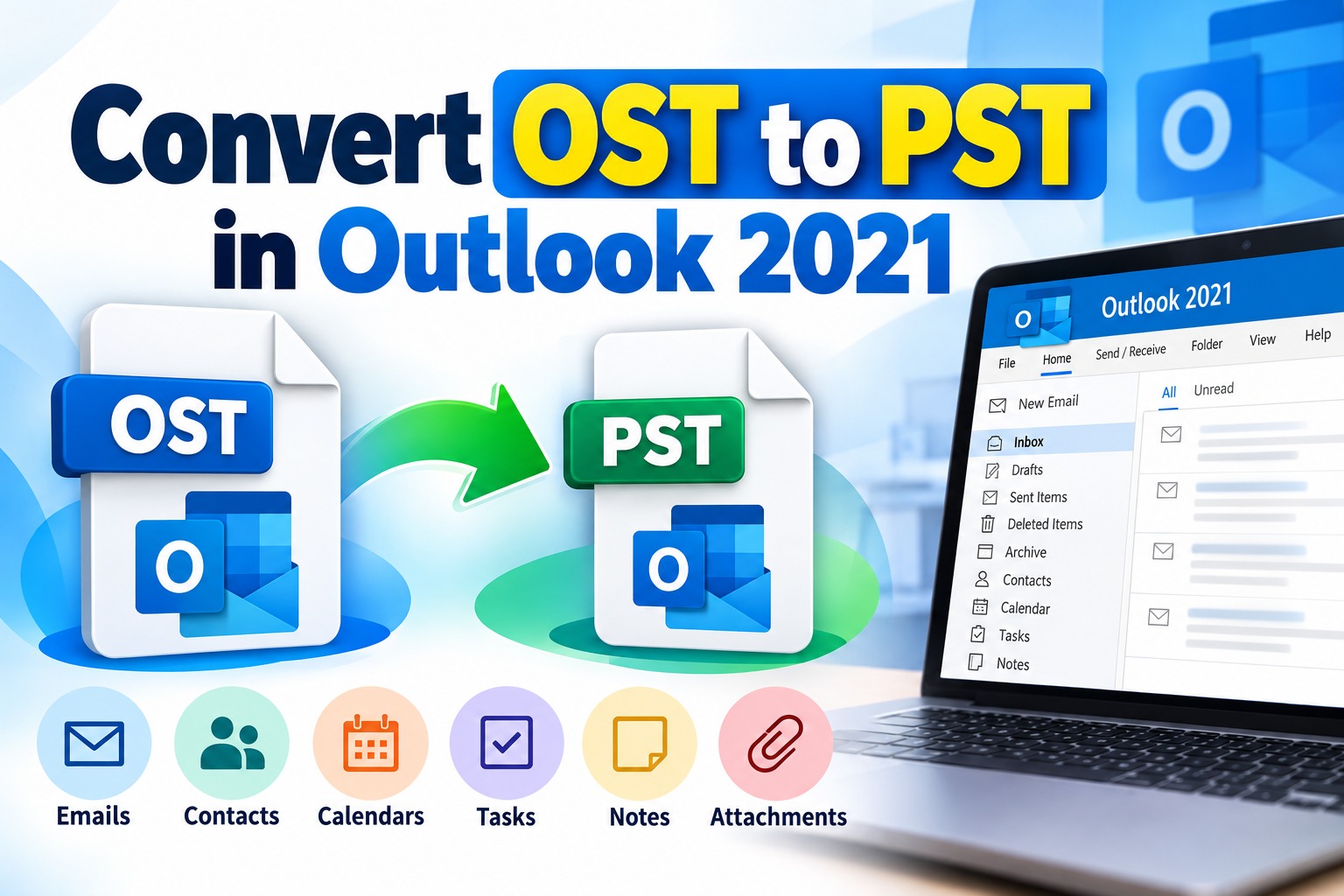
Microsoft Outlook 2021 is widely used for managing emails, contacts, calendars, and other mailbox data. Outlook stores certain types of offline mailbox information in an OST (Offline Storage Table) file, allowing users to work with synchronized data even when an internet connection is unavailable. However, there are situations where users need to convert OST to PST (Personal Storage Table) format for backup, migration, archiving, or accessing mailbox data in another Outlook profile.
Converting OST to PST in Outlook 2021 depends on whether the original mailbox is accessible and synchronized. If the Exchange, Microsoft 365, or IMAP account is still available, users can often export their mailbox data using Outlook's built-in features. If the OST file belongs to a deleted account, disconnected mailbox, or inaccessible profile, a different recovery approach may be required.
This guide explains the available methods, their limitations, and the steps to choose the right OST to PST conversion solution.
What Is the Difference Between OST and PST Files?
Before converting files, it is helpful to understand their purpose.
OST (Offline Storage Table): An OST file stores a local, synchronized copy of mailbox information associated with a supported Outlook account. It allows users to access synchronized emails and other items while offline.
PST (Personal Storage Table): A PST file is a portable Outlook data file that can store emails, attachments, contacts, calendars, and other supported Outlook items. It is commonly used for backups, archiving, and transferring data.
The main difference is that an OST file is generally associated with a particular Outlook profile and account, while a PST file can be exported, stored separately, and opened in a compatible Outlook profile.
Method 1: Export OST Mailbox Data to PST Using Outlook 2021
If your original mailbox is accessible and Outlook has synchronized the required data, you can use the built-in Import and Export Wizard.
Step 1: Open Microsoft Outlook 2021
Launch Outlook 2021 on your Windows computer. Make sure you are signed in to the original email account and that the required emails and folders are visible.
Wait for synchronization to complete before exporting. If some messages exist only on the server and have not synchronized, they may not be included in the export.
Step 2: Open the Import and Export Wizard
Click File in the top-left corner. Select Open & Export, then click Import/Export.
The Import and Export Wizard will appear, presenting several options for importing and exporting Outlook data.
Step 3: Select Export to a File
Choose Export to a file and click Next.
On the next screen, select Outlook Data File (.pst) and click Next again.
This option exports selected mailbox data into a PST file.
Step 4: Choose the Mailbox Folder
Select the mailbox folder you want to export. To include the entire mailbox, select the top-level mailbox folder and enable Include subfolders.
This setting is important because it includes nested folders such as Inbox, Sent Items, and other folders within the selected mailbox.
Click Next to continue.
Step 5: Select the Destination
Click Browse and choose a folder where you want to save the PST file. Enter a suitable filename, such as Outlook2021_Backup.pst.
Choose a secure location with enough free disk space. Avoid saving the only backup on a drive that is unreliable or nearly full.
Step 6: Complete the Export
Choose how Outlook should handle duplicate items if prompted, then click Finish.
If Outlook asks you to create a password for the PST file, you can set one or leave the optional password fields blank.
Wait for the export to finish. For a large mailbox, the process may take some time.
Important: This method exports available mailbox data through Outlook. It does not directly convert an arbitrary orphaned or inaccessible OST file.
Method 2: Convert an OST File When the Original Mailbox Is Inaccessible
Sometimes Outlook cannot connect to the original account because the Exchange account has been deleted, the server is unavailable, or the Outlook profile has been removed. In these situations, the standard export method may not work.
A standalone OST to PST converter may be an option when you need to extract data directly from an existing OST file.
A typical workflow involves the following steps:
Not every tool can recover every OST file. Encryption, corruption, missing data, and file damage can affect the result. Review product documentation and test with a trial version when available.
Method 3: Import the Converted PST File into Outlook 2021
After creating a PST file, you can open or import it into Outlook 2021 to access the exported information.
Alternatively, use File > Open & Export > Import/Export if you want to import the data into an existing mailbox.
Select the appropriate PST import option, browse to the file, and follow the wizard's instructions. Choose the destination folder and complete the process.
Opening a PST file is useful for reviewing archived data without immediately merging it into your primary mailbox.
Common Problems During OST to PST Conversion
Outlook Cannot Open the OST File
The file may belong to another profile, or the associated account may no longer be available. Try opening Outlook with the correct profile and checking account connectivity before attempting recovery.
Some Emails Are Missing
The mailbox may not have fully synchronized before export. Check the original mailbox and synchronization status. Also verify whether the missing messages were stored locally or on the server.
The OST File Is Corrupted
Avoid repeatedly modifying the original file. Preserve a copy and determine whether the mailbox can be synchronized again. If not, consider a recovery tool that supports the specific type of OST damage.
The PST File Is Too Large
Large exports can require substantial disk space and may take considerable time. Ensure the destination drive has sufficient free space and use a compatible Outlook version that supports the resulting PST file size.
Best Practices for Safe OST to PST Conversion
These practices reduce the risk of accidental data loss and make it easier to verify the conversion result.
Frequently Asked Questions
Can I convert OST to PST directly in Outlook 2021?
Yes, when the original mailbox is accessible and its data is available in Outlook. Use the Import and Export Wizard to export the required folders to a PST file.
Can I convert OST to PST without connecting to Exchange?
Outlook's standard export process generally requires access to the mailbox through the configured profile. If the mailbox is unavailable, a compatible standalone converter may be necessary.
Is OST to PST conversion possible without data loss?
A successful export can preserve the selected mailbox items, but no method guarantees recovery of every message in every situation. Verify the output and retain the original data until the conversion is confirmed.
Does Outlook 2021 automatically convert OST files to PST?
No. Outlook does not automatically convert every OST file into a portable PST file. Users must export accessible mailbox data or use another suitable recovery approach.
Which method should I choose?
Use Outlook 2021's built-in export feature when the original account works normally. Consider a specialized converter when you need to recover data from an inaccessible OST file and cannot use the standard mailbox export process.
Conclusion
Converting OST to PST in Outlook 2021 can help users back up emails, archive mailbox information, and transfer accessible Outlook data. The built-in Import and Export Wizard is the most straightforward approach when the original mailbox is available and synchronized.
When an OST file is orphaned, inaccessible, or associated with an unavailable account, a compatible OST to PST converter may provide an alternative. Always preserve the original file, assess the recovery requirements, and verify the exported PST before deleting or changing any source data.
By selecting the appropriate method and following safe conversion practices, users can manage Outlook mailbox data more reliably and reduce the risk of losing important email information.
*try to Free Download enables you to preview & converted file and save 30 items per folder.




0 Comments